Short AI Video Scenes in Workflows
Create short AI video scenes inside Hiding Elephant workflows for ads and social. Text-to-video and image-to-video clips you can stitch into longer edits, without opening a full video suite.

Still images get you far. Ads and social often need a few seconds of motion too: a product turn, a quick lifestyle beat, a hook that stops the scroll.
Most teams do not want to leave their creative tools, open a full video editor, and rebuild the whole process for every short clip. They want motion that fits into the same production system they already use for images.
That is why we added short AI video scenes inside workflows.
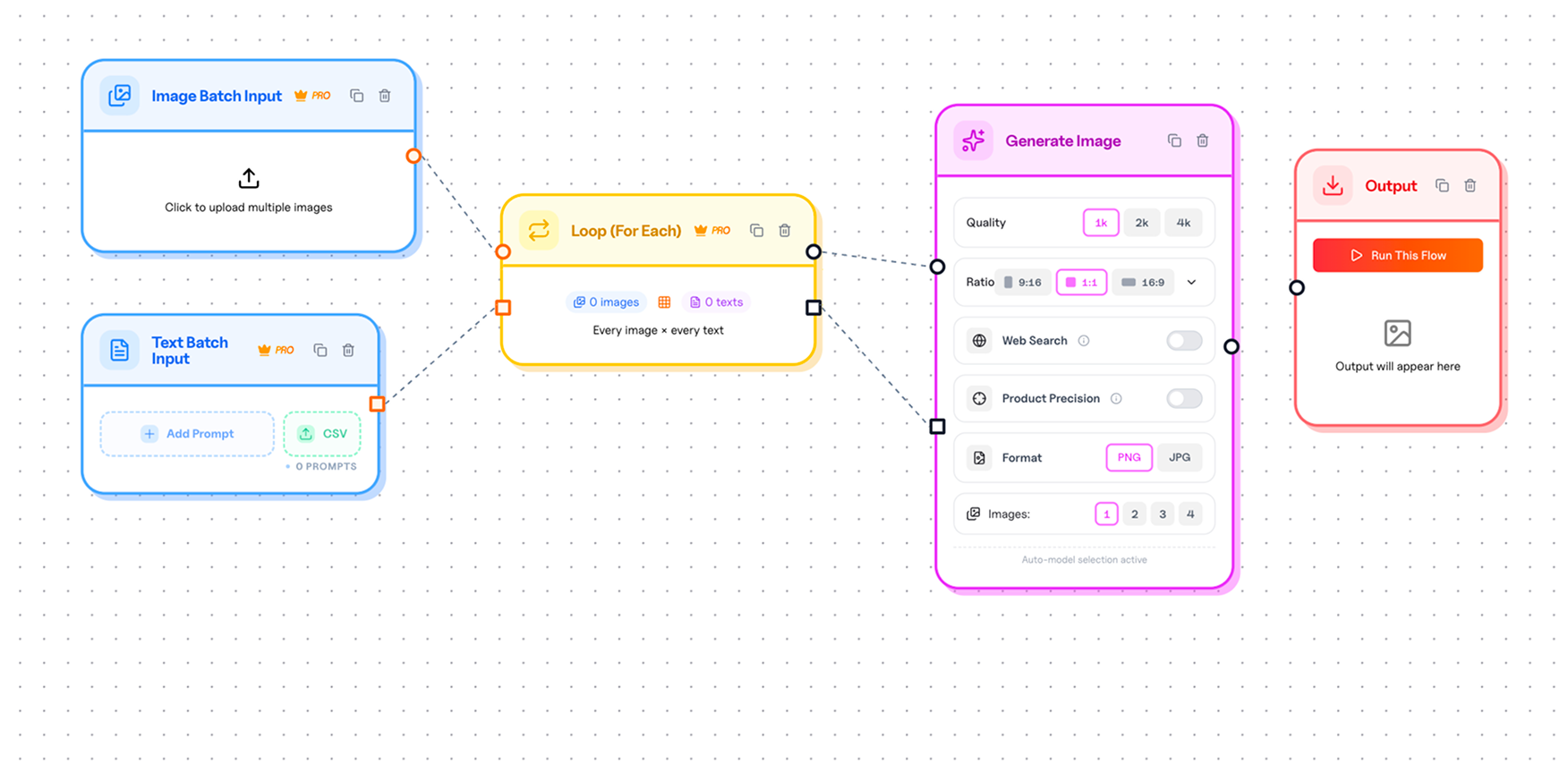
What a video scene is (and is not)
These are short clips, typically up to about eight seconds. You can generate them from text, from an image, extend a scene, or use references depending on the workflow setup.
They are meant for:
- Ad hooks and product motion
- Social clips that sit next to still assets
- Quick scene variations you can stitch into a longer edit elsewhere
They are not a replacement for After Effects or a full timeline editor. If you need complex cuts, sound design, and long-form production, keep that stack. If you need short motion assets inside a repeatable creative pipeline, this is the job.
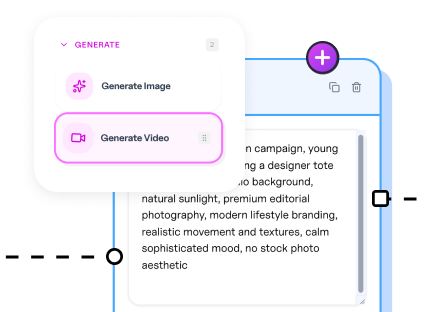
Why video lives in workflows
When we launched workflows, the point was to stop remaking the same production process by hand. Video scenes fit that idea.
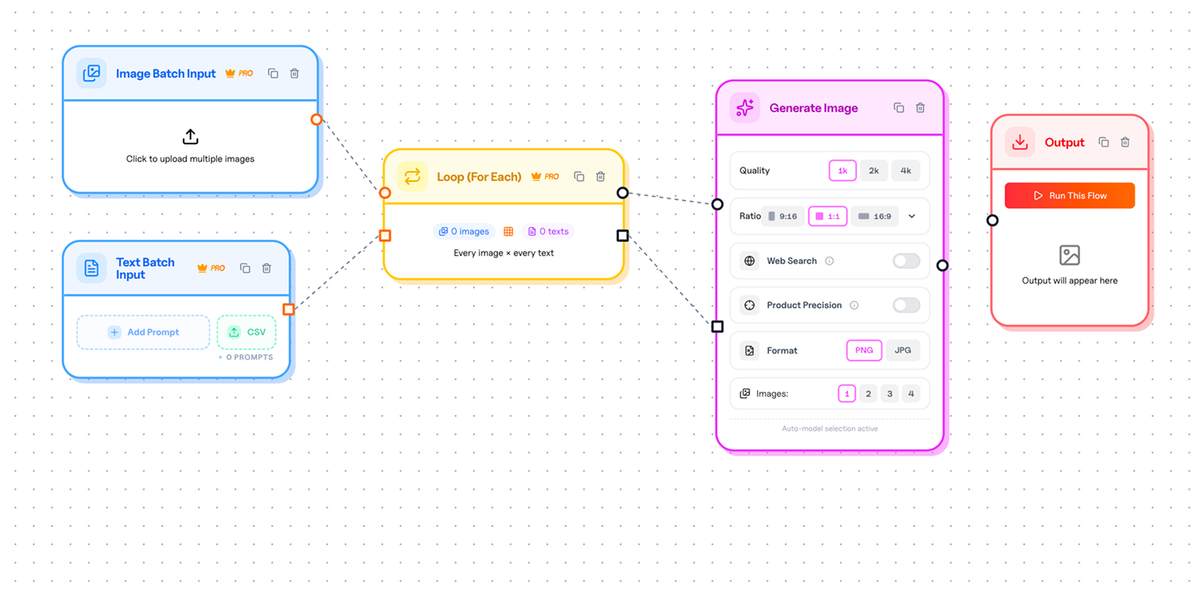
You can put a generate-video step into a flow next to image generation, cleanup, reframing, or batch inputs. One direction can become stills and short motion without starting a second project in a second tool.
A simple example:
- Start from a product image or campaign still.
- Generate a short image-to-video scene for the hook.
- Create still variants for the rest of the placements.
- Run the same flow again when the catalog or prompts change.
The motion is part of the system, not a side quest.
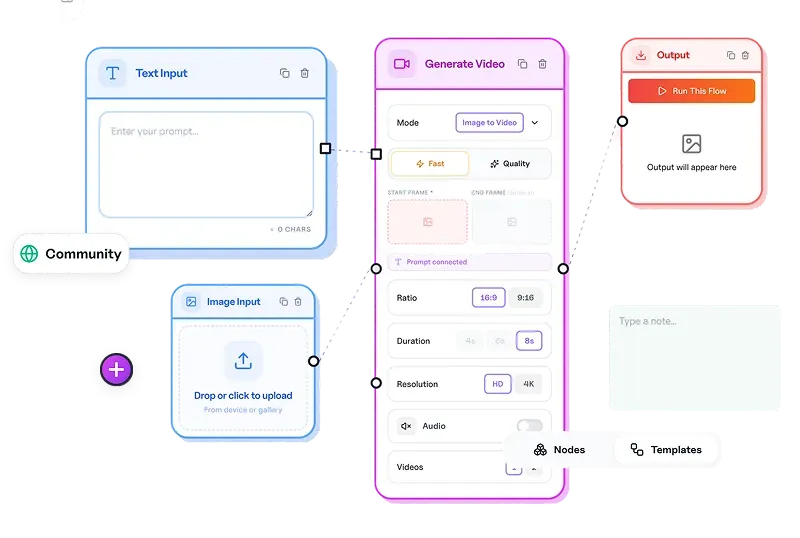
Text-to-video and image-to-video
Two common paths show up in practice.
Text-to-video helps when you want a scene from a written idea: mood, action, setting, and product story.
Image-to-video helps when you already have a strong still and want it to move. That is often the faster route for ecommerce and performance ads, because the product or composition is already decided.
Either way, the useful question is the same: can this short scene earn its place in an ad or social cut? If yes, keep it. If not, regenerate or adjust the step and run again.
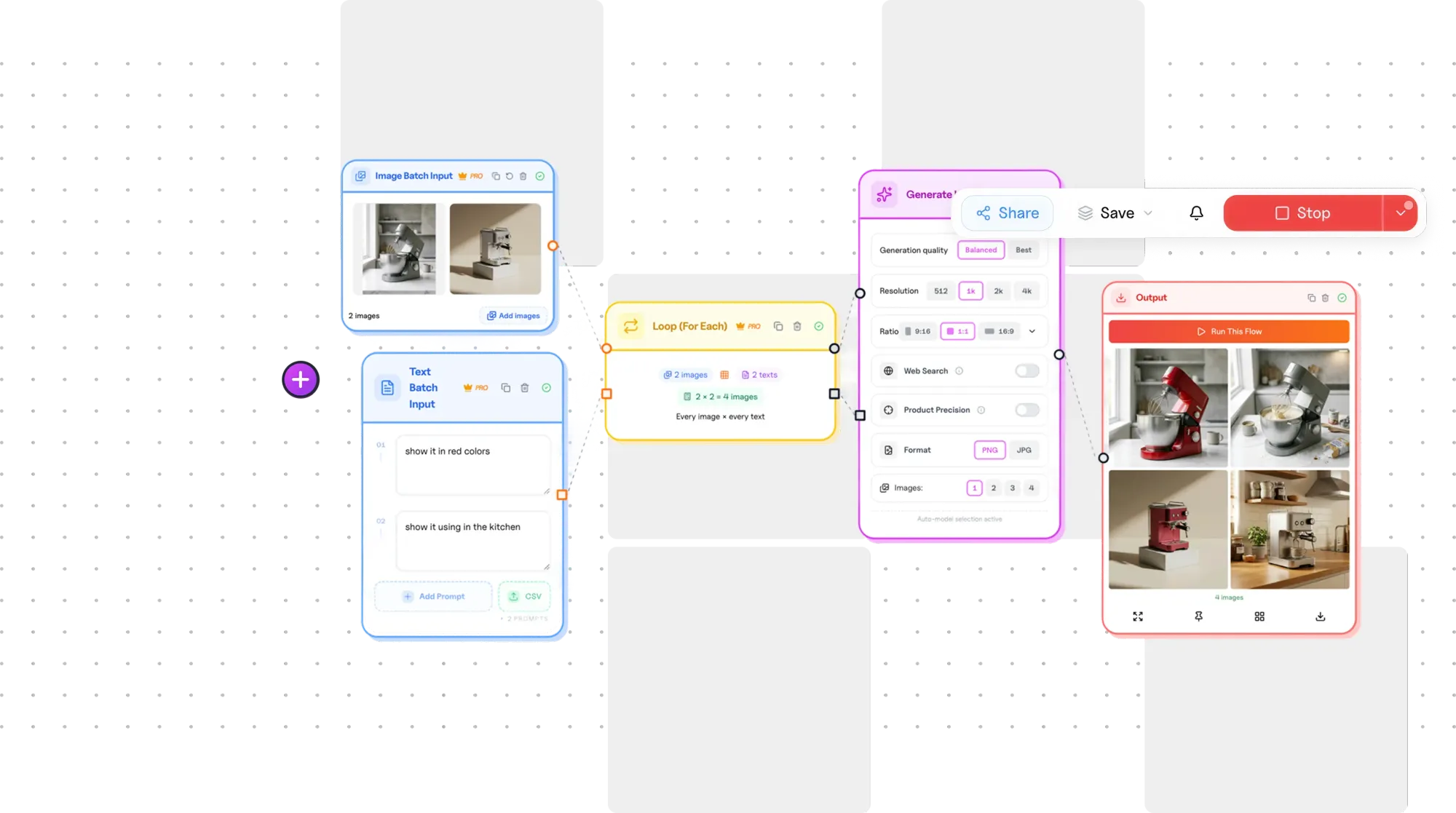
Where this helps most
Video scenes are especially useful when:
- You already have a creative direction on the canvas and want a moving version
- You need several short hooks for testing, not one polished film
- Your team produces ads or social content often enough that motion should be repeatable
Plan limits and credits still apply, so treat scenes like any other production resource: use them where motion actually changes the outcome.
Start inside a workflow
Open a project, switch to Workflows, and add a video generation step to a flow you already trust. Or explore workflow automation if you want the bigger picture of how pipelines fit together.
Short scenes. Same production system. Motion without leaving the workspace for every clip.