Introducing Magic Edit
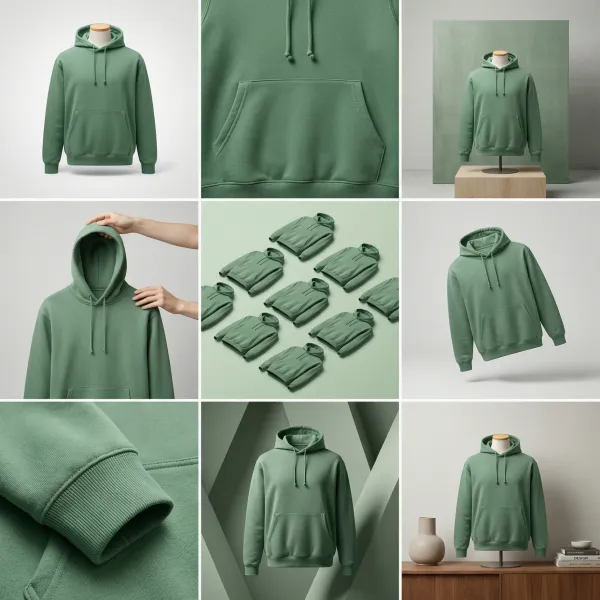
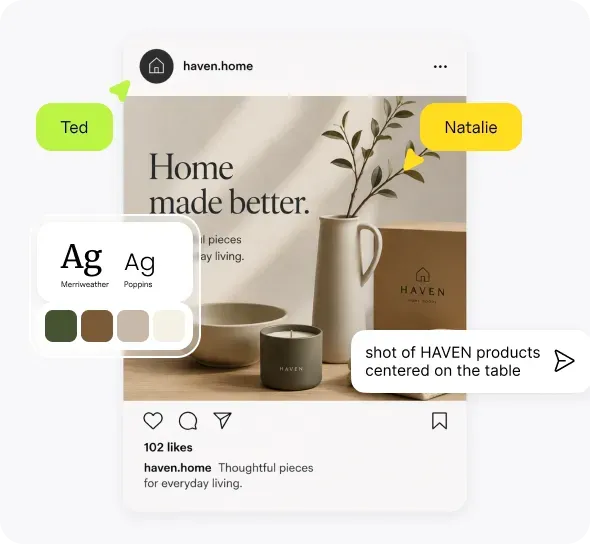
Edit the image you already have on the canvas: double-click to refine it, or brush an edit area when you only want to change one precise part.

Sometimes the best next step is not a brand new generation. It is a better version of what you already have.
That is why we built Magic Edit on the canvas: a faster way to improve an existing image without throwing away the direction you already like.
How you use it
Magic Edit lives in your canvas work, not as a separate old editing page.
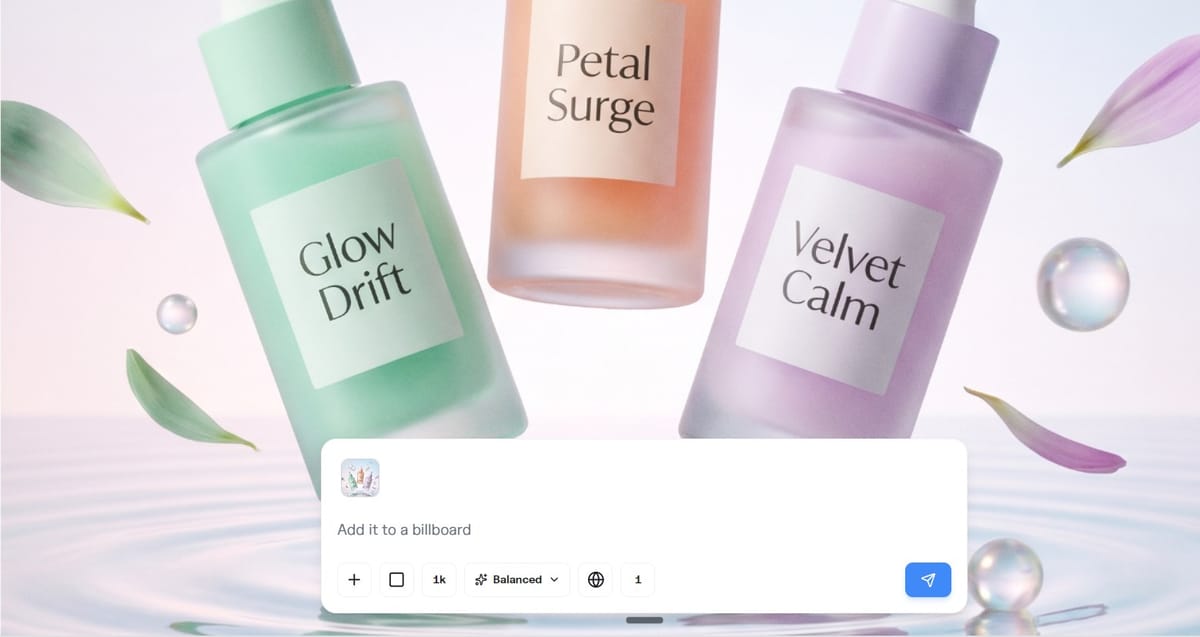
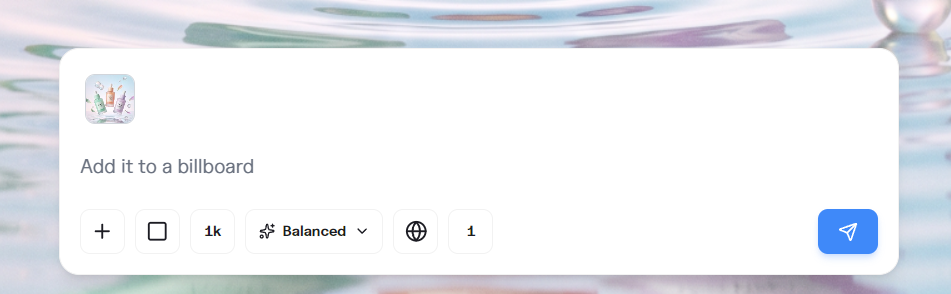
Double-click an image to start editing it directly in the prompt bar. Describe what you want to change, and keep moving from the same visual.
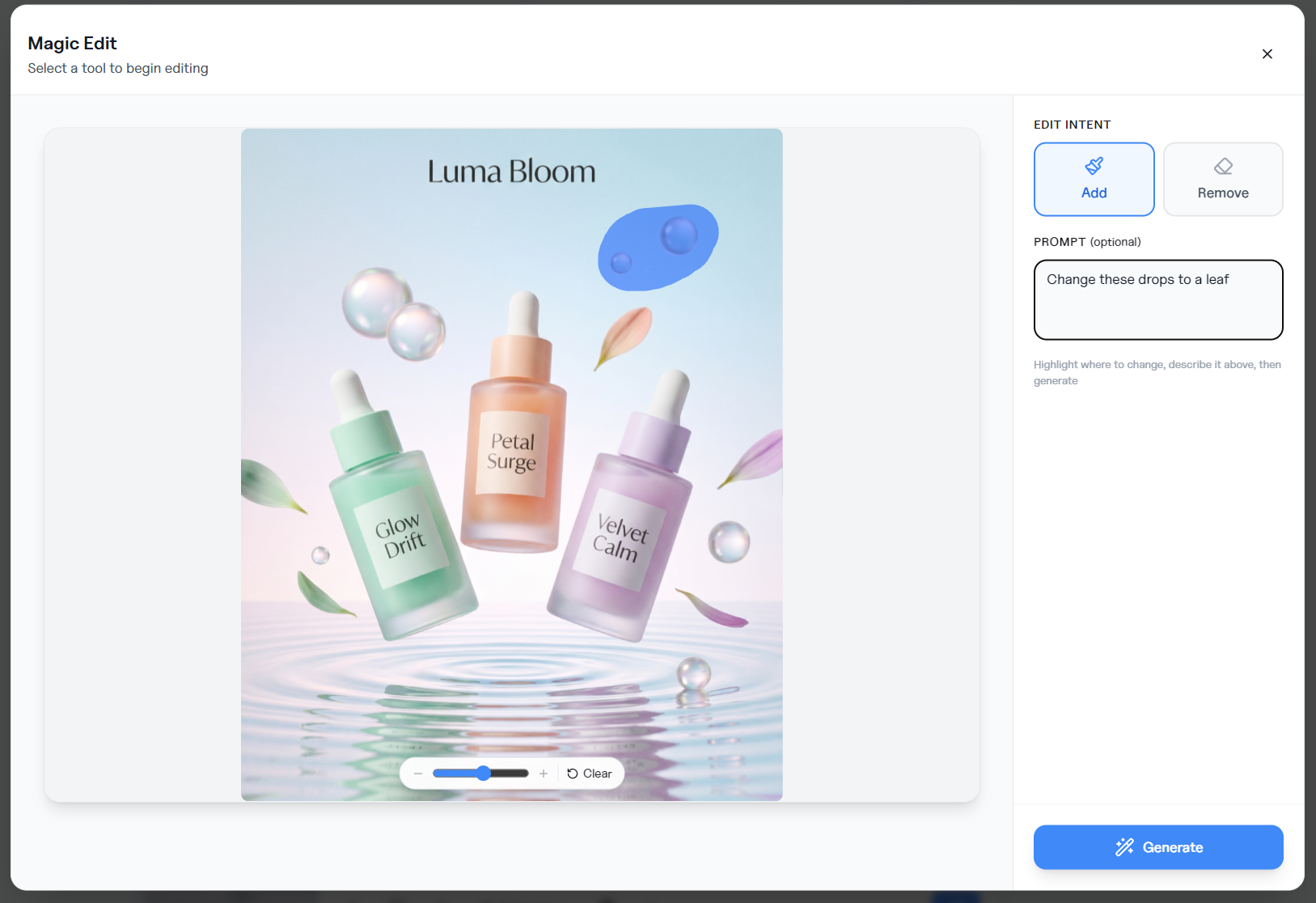
Or brush an edit area when the change is hard to describe in words, or when you only want a very precise edit. Highlight just the part that should change (like working with a mask), so the rest of the image stays put.
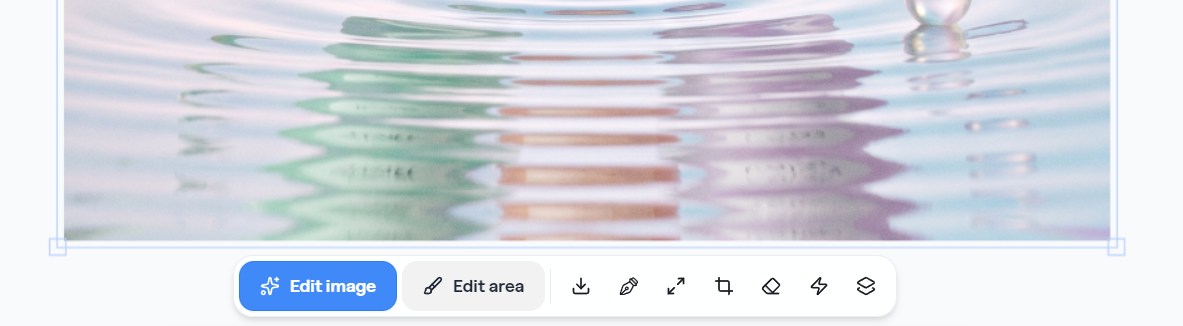
That second path is especially useful for small fixes: one object, one label, one corner of a scene, without regenerating everything around it.
What Magic Edit is for
Use it when you want to:
- Revise one existing image instead of regenerating everything
- Change a detail with a prompt
- Target a precise region with the edit-area brush
- Try a quick alternate from a strong starting point
It fits the same belief behind our shift toward an AI design workspace: AI should help you move faster, and you should stay in control of the result.
Why we shipped it
After Hiding Elephant 2.0, the canvas made it easier to generate and refine in one place. The next friction was obvious.
You would get close. Then you would want a small change: a cleaner edge, a different treatment on one object, a tighter variant. Starting over broke the rhythm.
Magic Edit keeps that loop short. Open the image. Edit the whole thing, or only the area you brush. Keep going.
How to think about it
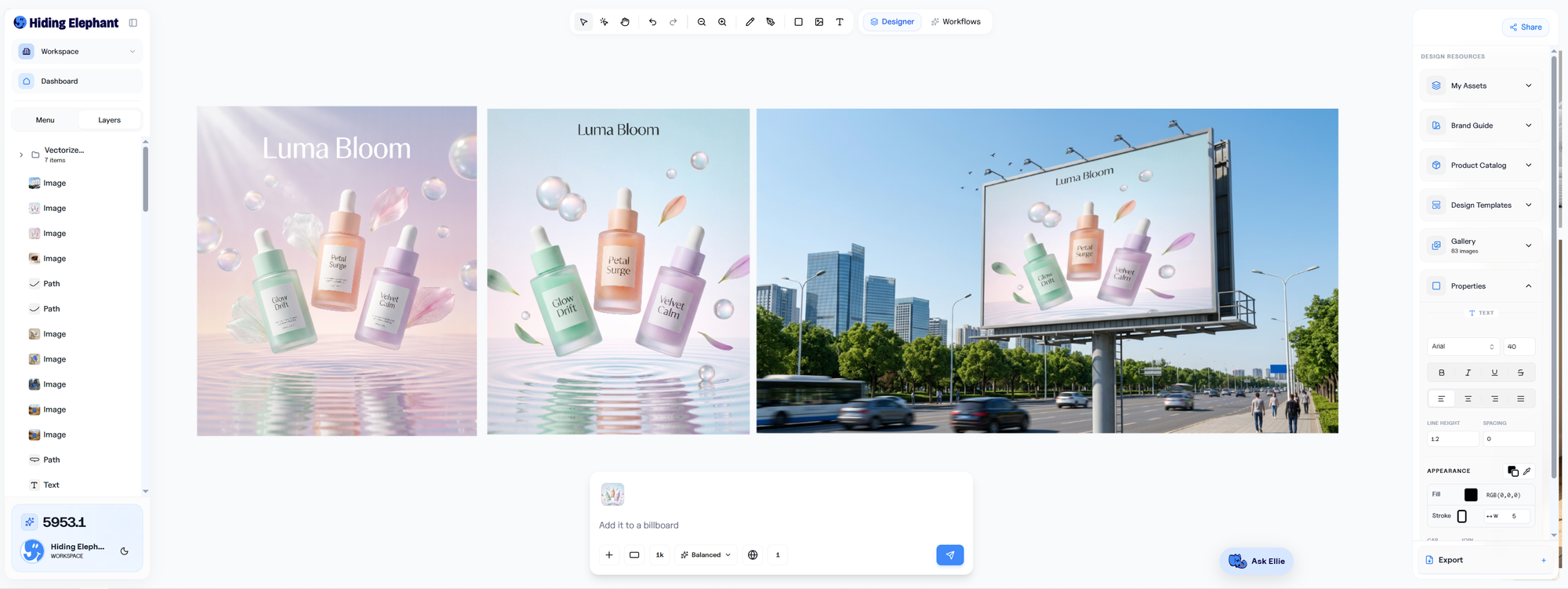
Think of Magic Edit as the “improve this” layer on top of generation:
- Generate or place something promising on the canvas
- Double-click it to edit, or brush an edit area for a precise change
- Finish with vector tools when you need exact control
It is not meant to replace careful vector editing. It is meant to remove the awkward middle where a good image almost works, and the fix should not take twenty minutes.
Who will feel this most
- Designers iterating on a direction they already like
- Marketers making quick variants from one strong visual
- Anyone who regenerates too often just to change one thing
Try it
Open the canvas, double-click an image, and try Magic Edit. If you only want one precise change, brush the edit area first, then prompt.
Smaller loops. Better finishes. Same creative judgment, less restarting from zero.